
Quick Summary
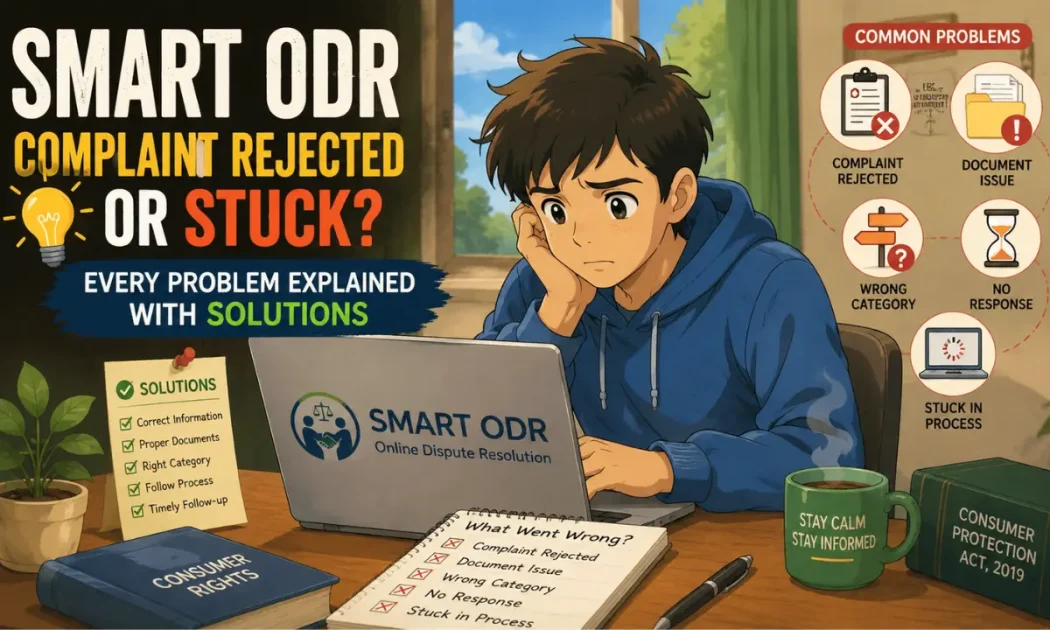
SMART ODR turns disputes back for five reasons: no prior SCORES complaint, an unregistered entity, an invalid reference number, a dispute outside its scope, or a SCORES complaint sitting in the wrong status. Upload failures come down to file size, format, connection, or session timeout. Amendments are possible early and get harder once a conciliator is assigned. A stuck case almost always needs a helpdesk call with your case reference, not more waiting. This page shows you which problem you have and the exact step that fixes it.
Filing on SMART ODR and hitting a problem is more common than most guides acknowledge.
The dispute is not accepted. The document upload fails. The case has been at the same status for weeks with no update.
A mistake in the entity name is discovered after submission.
These situations are frustrating, particularly when the underlying grievance is genuine and you have already been through the SCORES process to get here.
Almost all of them are fixable, and most take one action rather than a fresh start.
Why Is My SMART ODR Dispute Not Accepted?
Having your dispute turned back is frustrating, especially when you have already jumped through so many hoops to get here.
A rejection usually comes down to a few specific, fixable mismatches.
Five reasons cover almost every rejection. They are listed roughly in order of how often they occur, and each one has a different fix, so identifying which applies to you is the first step.
Reason 1: No Prior SCORES Complaint Exists
This is the most common reason a dispute is not accepted on SMART ODR.
The platform requires a prior SEBI SCORES complaint as the foundation for every dispute. If you attempt to file on SMART ODR without having first filed on SCORES and exhausted the SCORES process, the platform will not accept your dispute.
What to do: File on SCORES first. Give the intermediary 21 days to respond.
If the response is unsatisfactory or no response comes, mark it accordingly and allow the SCORES Level 2 Review to run. Once SCORES escalation is complete, SMART ODR becomes accessible.
The full filing route, including how to pick the correct intermediary category, is set out in our guide to the SEBI SCORES complaint process.
Reason 2: The Entity Is Not SEBI-Registered
SMART ODR only handles disputes with SEBI-registered intermediaries.
If the firm, individual, or platform you are filing against does not hold a valid SEBI registration, the platform cannot accept the dispute because there is no regulatory mechanism to compel a non-registered entity to participate.
What to do: Verify the entity’s registration on sebi.gov.in before filing.
If it is unregistered, report it at cybercrime.gov.in for investment fraud, and at RBI’s Sachet portal if the entity is operating an unregulated deposit or investment scheme.
Reason 3: The SCORES Reference Number Is Invalid or Does Not Match
When you access SMART ODR through the SCORES 2.0 escalation path, the case should transfer automatically with your SCORES reference number.
If you are accessing SMART ODR directly and entering your SCORES reference number manually, an invalid or incorrectly entered number will prevent the dispute from being linked to your prior SCORES record.
What to do: Log in to your SCORES account and retrieve your exact reference number from your complaint history.
Enter it character by character in the SMART ODR form.
If the number is valid but the link still fails, contact the SMART ODR helpdesk with both your SCORES reference number and your PAN number for manual case linking.
Reason 4: The Dispute Falls Outside SMART ODR’s Scope
SMART ODR handles securities market disputes with SEBI-registered entities.
Complaints about insurance, banking transactions, tax matters, or personal disputes between private parties are outside its scope even if they relate to investments more broadly.
What to do: Identify the specific regulatory body for your complaint type.
Insurance complaints go to IRDAI’s Bima Bharosa. Banking transaction complaints go to the Banking Ombudsman. Consumer fraud goes to the Consumer Disputes Redressal Commission.
Which disputes the platform does accept, and what has to be true before you file, are covered in our guide to SMART ODR eligibility.
Reason 5: The SCORES Complaint Is in the Wrong Status
SMART ODR becomes accessible only after the SCORES complaint has been marked as unsatisfactory or has timed out without an intermediary response.
If your SCORES complaint is still showing as pending, or was auto-closed as resolved because you did not respond to the intermediary’s reply in time, SMART ODR may not recognise it as eligible for escalation.
What to do: Log in to SCORES and check the exact status of your complaint.
If it was auto-closed, contact SEBI’s investor helpline at 1800 22 7575 with your SCORES reference number and request that the complaint be reopened or moved to escalation.
If it is still pending, wait for the intermediary’s 21-day response window to pass before attempting SMART ODR access.
SMART ODR Document Upload Error: What Causes It and How to Fix It?
Getting your evidence uploaded should be the easy part, but the portal can be picky about attachments.
If the system is rejecting your files or getting stuck, it is usually triggered by one of four issues.
1. File Size Too Large
SMART ODR has a per-file size limit for document uploads. Files that exceed this limit fail to upload without a clear error message in some cases.
Compress your PDF files using a compression tool before uploading. For image files, reduce the resolution or dimensions.
If you have a large multi-page document, split it into sections and upload each section as a separate file.
2. Wrong File Format
SMART ODR accepts PDF files for multi-page documents and JPG or PNG files for image screenshots.
Other formats, including DOCX, XLSX, TIFF, and HEIC, may not be accepted. Convert your documents to PDF or JPG before uploading.
For WhatsApp screenshots taken on an iPhone, HEIC format images need to be converted to JPG before uploading.
3. Unstable Internet Connection
Large files on a slow or unstable connection can fail mid-upload. Use a stable connection for document submission.
If a file fails repeatedly, try from a different browser or device.
4. Session Timeout
The portal may time out if the session is inactive for too long during the filing process.
If you are preparing your submission and the session expires, the documents you were about to upload may be lost.
Complete your document preparation before logging in and keep the upload session active by moving through the form without long pauses.
If uploads continue to fail, contact the SMART ODR helpdesk and provide your case reference number.
The helpdesk can advise on the specific upload requirements for your case or arrange an alternative submission method if the portal issue is on their end.
Can I Edit or Amend a SMART ODR Complaint After Submission?
Realising you made a mistake on a formal complaint is stressful, but you are not locked out.
Whether you can make changes comes down to timing.
Your options depend entirely on how far your case has progressed.
1. Before the Conciliator Reviews Your Submission
In most cases, early-stage amendments are possible by contacting the helpdesk with your case reference number and specifying what needs to be changed.
Minor corrections to factual details such as a date, an amount, or a reference number are more likely to be accommodated than substantive changes to the nature of the dispute.
2. After the Conciliator Has Been Assigned
Amendments to the core complaint description become significantly harder.
The conciliator has already reviewed your submission, and the intermediary has been notified of its content.
Changing the substance of your claim at this stage creates procedural complications.
3. Adding Supplementary Documents
Adding new supporting documents after initial submission is generally possible even after proceedings begin, provided the additional documents are relevant to the existing dispute.
Notify the conciliator through the portal that supplementary evidence is being added. Include a brief explanation of why the document was not submitted initially and what it adds to your case.
If you made a significant error, contact the helpdesk immediately with your case reference number and explain the error specifically.
For errors that are fundamental, such as the wrong intermediary name or an incorrect SCORES reference number, the helpdesk may need to close the incorrectly filed case and open a fresh one.
Act on this as soon as you identify the error rather than waiting to see if it matters.
SMART ODR Complaint Against Wrong Entity: What to Do?
Realising you named the wrong entity after hitting Submit is a stressful mistake to catch.
It is fixable if you move quickly.
The most common version of this error is filing against the company name when the correct respondent is the proprietor, or the reverse.
For example, filing against “ABC Research Private Limited” when the SEBI registration is held by “ABC Research, Rahul Sharma” as an individual proprietorship. Another common version is filing against the wrong entity when two firms have similar names.
Four steps, and the first one decides how much work the rest will be.
Step 1: Check the Case Status Immediately
Log in to SMART ODR and check the case status.
If the case has not yet been processed and the Notice to the Opposite Party has not been sent, contact the helpdesk urgently to request a correction.
Step 2: Verify the Correct Entity Name
Verify the correct entity name and registration number on sebi.gov.in before making any correction request.
The registration portal shows the exact legal name under which the entity is registered. Use that exact name in your correction request.
Step 3: If the Notice Has Already Gone Out
The helpdesk may need to close the case and reopen it with the correct entity details.
This resets the timeline but is better than proceeding against the wrong party.
Step 4: If You Are Not Sure Which Entity to Name
Where a firm has multiple related entities, identifying the correct registered respondent before you file is the whole job.
Our guide to what is SMART ODR covers how to identify the right entity for each intermediary type.
SMART ODR Complaint Stuck: What to Do When Nothing Moves?
If your dispute has been stuck in the same status for weeks, it is normal to feel ignored.
A stuck status does not mean your case is dead. It means it needs an active push.
What to do depends on where it stalled, because each stage has a different owner and a different expected window.
1. Stuck at Pending Intermediary Response
The intermediary has a defined period to respond after receiving the Notice to the Opposite Party.
If this period has passed without a response showing on your dashboard, do not assume the case is inactive.
Log in and check the exact status. If the response window has passed and no update appears, contact the helpdesk with your case reference number and the date the notice was sent.
The helpdesk can follow up with the intermediary or escalate the non-response within the system.
2. Stuck at Conciliator Assigned for More Than 2 Weeks
Check your dashboard directly rather than relying on email notifications.
If the dashboard also shows no update for more than 2 weeks after conciliator assignment, contact the helpdesk.
Conciliators are expected to initiate contact within a defined period. If this has not happened, the helpdesk can follow up with the assigned conciliator.
3. Stuck at Pre-Conciliation for More Than 4 Weeks
Pre-conciliation typically runs for 2 to 4 weeks.
If it has been longer with no progress, log in and check whether any action is required from you. The stage may be waiting for a response or document from your side that you missed in a notification.
If no action is pending from you and the case is still not moving, contact the helpdesk.
4. The General Rule for Any Stuck Status
Check the dashboard directly at least twice a week.
Contact the helpdesk with your case reference number if no update appears for more than 2 to 3 weeks at any stage. Document the date you contact the helpdesk and the response received.
If the helpdesk does not resolve the stuck status, write to SEBI’s investor services division with your SCORES reference number, your SMART ODR case reference, and a summary of the timeline.
How long each stage is expected to take, and what the intermediary is obliged to do at each one, is set out in our guide to how SMART ODR conciliation works.
Knowing which fix applies is one thing.
Getting a case moving after it has already stalled, without resetting the clock you have spent months on, is another.
Has your case stopped moving despite doing everything right?
We will read the case record, find where it stalled, and push it back into motion with the right escalation.
Conclusion
SMART ODR disputes are rejected for five main reasons: no prior SCORES complaint, unregistered entity, invalid SCORES reference number, dispute outside platform scope, or SCORES complaint in the wrong status.
Each has a specific fix, and the fix is almost always to address the underlying issue and refile correctly rather than to force the platform to accept an ineligible filing.
Document upload failures are caused by file size, wrong format, connection issues, or session timeout. All are fixable with the right preparation before uploading.
Amendments after submission are possible for minor corrections and supplementary documents, but become harder as the case progresses.
Wrong entity errors need immediate action before the Notice to the Opposite Party is sent.
A stuck complaint responds to active follow-up through the helpdesk with your case reference number and documented timeline. Passive waiting is the one thing that does not help a stuck case.
Frequently Asked Questions
SMART ODR disputes are not accepted for five specific reasons: no prior SEBI SCORES complaint exists for the same dispute, the entity is not SEBI-registered, the SCORES reference number is invalid or incorrectly entered, the dispute falls outside SMART ODR's securities market scope, or the SCORES complaint is in the wrong status such as auto-closed before you marked it as unsatisfactory.
Check that your file is in PDF, JPG, or PNG format and within the per-file size limit. Compress large PDF files before uploading. Convert HEIC or DOCX files to PDF or JPG. Use a stable internet connection and avoid long pauses during the upload session. If upload continues to fail, contact the SMART ODR helpdesk with your case reference number for alternative submission guidance.
Minor factual corrections such as a date or amount can often be made before the conciliator reviews your submission by contacting the SMART ODR helpdesk. Once proceedings have started, substantive changes to the dispute description are significantly harder. Adding supplementary documents after initial submission is generally possible at most stages. Act on any error immediately rather than waiting to see if it affects the outcome.
Log in to SMART ODR immediately and contact the helpdesk with your case reference number if the Notice to the Opposite Party has not yet been sent. Verify the correct entity name and registration number on sebi.gov.in before requesting correction. If the notice has already been sent to the wrong entity, the helpdesk may need to close the case and reopen it with the correct details.
Check your SMART ODR dashboard directly at least twice a week rather than relying on email notifications. If no update appears for more than 2 to 3 weeks at any stage, contact the SMART ODR helpdesk with your case reference number and the date of the last update. Document all helpdesk contacts with dates and responses. If the helpdesk does not resolve the issue, escalate to SEBI's investor services division in writing.
A rejected SCORES complaint is not the same as an unresolved one. SMART ODR requires a valid, processed SCORES complaint that produced either no response or an unsatisfactory response. If your SCORES complaint was rejected, address the rejection reason, refile on SCORES correctly, and escalate to SMART ODR from there. For the full guide on SCORES rejection reasons, read the dedicated rejection guide.





 Add us as a preferred source on Google »